WebP vs PNG, the short answer: WebP produces smaller files for the same image, supports transparency and works in all current browsers, so it is the better format for product photos shown on your own webshop. PNG is lossless and universally accepted, so it is the better format for master files, transparent cut-outs you will edit again, and uploads to channels that do not take WebP. Google's own figures put lossless WebP at 26% smaller than PNG and lossy WebP at 25 to 34% smaller than comparable JPEG.
For product images the format question has a second half: what each sales channel accepts. Amazon's image guide does not list WebP at all, Google Merchant Center takes WebP but not AVIF, and Shopify recommends uploading PNG or JPEG because it serves an optimized format to each browser itself. Below are the formats compared, the channel rules side by side, and a safe way to convert a whole catalog.
PNG, JPEG, WebP and AVIF compared on compression and transparency
The four formats a catalog team meets most differ in three ways that matter for product images: whether compression throws away data, whether the image can have a transparent background, and how widely it is supported. The facts below come from MDN's image format guide and Google's WebP documentation.
Product image formats at a glance
| PNG | Lossless | Yes, full alpha | Via APNG | All versions of major browsers | Master files, cut-outs, line drawings, size charts |
|---|---|---|---|---|---|
| JPEG | Lossy | No | No | All versions of major browsers | Photos for channels that want JPEG, such as Amazon |
| WebP | Lossy or lossless | Yes | Yes | Current major browsers; Safari 14+ on macOS Big Sur or later | Photos and cut-outs on your own webshop |
| AVIF | Lossy or lossless | Yes | Yes | Chrome, Edge, Opera, Safari and Firefox; MDN still advises a fallback | Webshop delivery with a JPEG or WebP fallback |
Two points in that table cause most confusion. First, WebP is not only a lossy format: lossless WebP keeps every pixel, like PNG, and still comes out smaller. Second, transparency is not limited to PNG. Google's documentation notes that lossy WebP with transparency is typically about three times smaller than the same image as PNG, which is useful for cut-out product shots on a colored page background.
File size: where WebP saves bytes over PNG and JPEG
Smaller images load faster, and on a category page with 48 product thumbnails the difference adds up. The published averages from Google:
- Lossless WebP vs PNG: about 26% smaller.
- Lossy WebP vs JPEG: 25 to 34% smaller at equivalent SSIM quality.
- Transparency in lossless WebP: adds only about 22% in bytes, by Google's figure.
These are averages over test sets, not a promise for your catalog. A product photo with a plain white background compresses differently from a lifestyle shot full of texture, and a PNG of a simple line drawing can already be tiny. Test with ten typical images from your own catalog before converting thousands, and compare at the size the image is actually displayed, not at 100% zoom.
AVIF usually goes further than WebP on photos, but encoding is slower and support is younger. MDN's advice for raster images is to prefer WebP or AVIF and serve JPEG as the fallback for photos and PNG as the fallback for anything that needs transparency, using the HTML picture element.
Pixel dimensions often matter more than the format. A 2048 x 2048 px photo shown as a 300 px category thumbnail wastes far more bytes than switching JPEG to WebP saves. Serve the size each layout needs, through responsive images (srcset) on your own templates or the image sizes your platform generates, and keep the large original for zoom and for channels that ask for 1,000 px or more.
Transparent product cut-outs: when to keep PNG and when to flatten
A transparent cut-out (the product with the background removed) is the most flexible asset in a catalog. It sits on any page color, works in banners and can be placed on white for marketplaces. Keep the master as PNG or lossless WebP so every edit starts from full quality, and create channel copies from it.
The marketplaces do not want the transparency, though. Amazon requires the main image on a pure white background with RGB values 255, 255, 255, and bol asks for a white, neutral background without visible shadows on the main image. For those channels, flatten the cut-out onto pure white before upload rather than leaving it to the channel to decide what color the empty pixels become.
Converting a transparent PNG to JPEG is the classic mistake: JPEG has no alpha channel, so the transparent area turns into a fill color chosen by the converter, often black. Always set the background color explicitly when you convert cut-outs to JPEG.
Image formats Shopify, Google Merchant Center, Amazon and bol accept
Each channel publishes its own rules, and they do not agree. These were checked on the official help pages in October 2026:
Accepted image formats and limits per channel
| Shopify | PNG and JPEG recommended; also TIFF, BMP, GIF, SVG, HEIC, WebP | Yes | Not listed | Up to 5000 x 5000 px or 25 MP, under 20 MB; 2048 x 2048 px suggested for square images | None set by Shopify |
|---|---|---|---|---|---|
| Google Merchant Center | JPEG, WebP, PNG, GIF, BMP, TIFF | Yes | Not listed | No image over 64 MP or 16 MB; 1500 x 1500 px recommended | No watermarks, promo text or logos as a substitute |
| Amazon | JPEG (recommended), TIFF, PNG, non-animated GIF | Not listed | Not listed | 500 to 10,000 px on the longest side; 1,000+ px enables zoom | Main image on pure white (255, 255, 255) |
| bol | Not specified on the image rules page | Not specified | Not specified | 30 KB to 10 MB; 500 x 500 to 6000 x 6000 px; zoom from 1200 x 1200 px | Main image on a white, neutral background |
A few details from those pages are worth knowing before you build a feed:
- Shopify converts for you. Its product media help page says the Imagery service detects which formats a customer's browser supports and displays the image in the best format available. Converting PNG to WebP before uploading to Shopify adds a lossy step without a delivery benefit, so upload good PNG or JPEG files.
- Merchant Center checks the extension. Google's image_link specification warns that a file extension that does not match the format, such as a PNG saved as .jpg, can trigger an 'Unsupported image type' error. The same page announces a minimum of 500 x 500 pixels for all products from 31 January 2027; our guide to the image too small error covers the fix.
- Marketplaces are the safe-format channels. For Amazon, send JPEG, its recommended format. bol's image rules page does not name any file formats, so our advice there is JPEG within the stated pixel and file size range, as the conservative choice. See our bol.com listing guide for the rest of the content rules.
Format choices for main images, gallery shots and size charts
A product page holds several kinds of images, and they do not all need the same format. A practical split for a typical catalog:
- Main packshot on white: keep a high-resolution JPEG or PNG original. Your webshop or CDN can serve WebP or AVIF from it, and the same file goes to Amazon, bol and Merchant Center without conversion.
- Gallery angles and detail shots: same as the main image. Detail shots are the ones shoppers zoom into, so keep them at least 1,000 px on the longest side for Amazon and 1200 x 1200 px for bol zoom.
- Transparent cut-outs: PNG or lossless WebP masters, flattened onto white for marketplaces and served as WebP on your own pages.
- Lifestyle and in-use photos: lossy formats suit them best, because texture hides compression. These are where WebP and AVIF save the most bytes.
- Size charts, dimension drawings and spec graphics: PNG or lossless WebP. Lossy compression blurs thin lines and small numbers, which matters when the shopper is reading a measurement.
- Color swatches: tiny files in any format; the effort goes into matching the swatch color to the product photo, not into compression.
- Animated images: WebP and GIF animate, and Shopify accepts animated versions of both. Amazon accepts only non-animated GIF and Merchant Center's image specification does not mention animation, so keep a still first frame as a separate file for feeds and marketplaces.
Phones add a sixth format to the mix: HEIC, the default on iPhones. Shopify accepts HEIC uploads, but HEIC is not on the Merchant Center or Amazon lists above, so convert phone shots to JPEG before they reach a feed or marketplace.
Converting a catalog's images in bulk without losing quality
Converting one image is a right-click. Converting 8,000 product images, each with three to six angles, is a data project. There are three common approaches, and they suit different teams:
- Command-line tools. Google's cwebp encoder and ImageMagick (with its mogrify command for whole folders) convert thousands of files in minutes. They are free and precise, but someone has to script them, keep originals and upload the results again.
- Let the platform do it. Shopify's Imagery service, image CDNs and WordPress image plugins create WebP or AVIF copies on delivery. Your stored files stay PNG or JPEG, which keeps them valid for feeds and marketplaces.
- Convert inside your product data tool. When images live next to the product data, you can create a channel copy per format and link it to the right products, instead of renaming files by hand.
Whatever the tool, set three things explicitly instead of trusting defaults: the quality level (a common starting point for lossy WebP is around 80; then compare by eye and adjust), the color profile (sRGB is the safe default for web and marketplace images, and Amazon lists RGB as its preferred color mode), and the maximum dimensions per channel, so a 6000 px studio file is not pushed to Shopify, which caps images at 5000 x 5000 px.
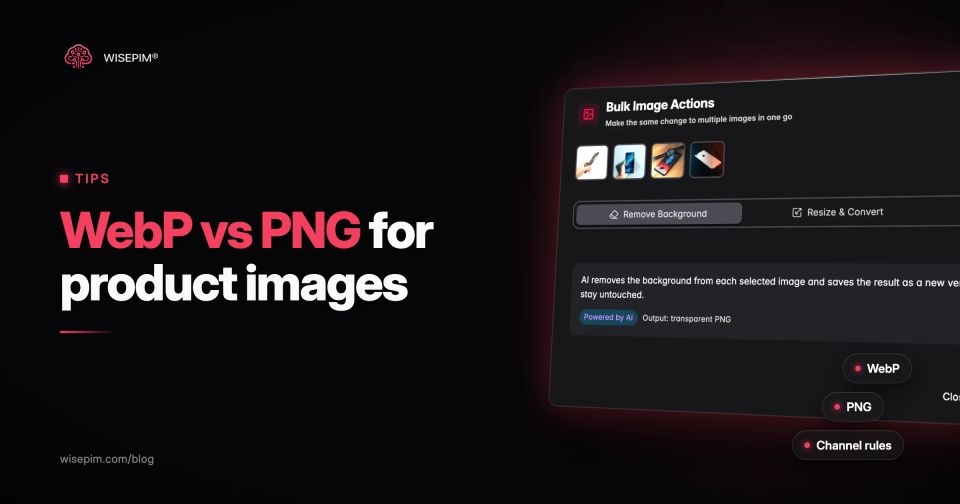
In WISEPIM the third option is the media library. Resize & Convert changes the dimensions and converts to PNG, JPEG or WebP with a quality setting, for one image or a selection through Bulk Image Actions. Optimize for Platform applies a preset size, format and quality for a target such as Shopify, Magento, WooCommerce or Lightspeed, and warns when an image is smaller than the target so upscaling would make it soft. Each result is saved as a new version you can undo. AVIF is not one of the output formats, and nothing is converted unless you run the action, or schedule it yourself in an automation with an Image Action set to Convert Format.
Before you convert a catalog's images
Five image format errors that cost product listings
- Sending WebP to a channel that does not list it. Amazon's image guide names JPEG, TIFF, PNG and non-animated GIF. Keep a JPEG copy for marketplaces even if your webshop serves WebP.
- Putting AVIF URLs in a Merchant Center feed. AVIF can work on your product pages with a fallback, but it is not on the image_link list, so point the feed to a JPEG, PNG or WebP copy.
- Stripping metadata during conversion. Google asks merchants not to remove the IPTC DigitalSourceType tag from AI-generated images. Batch tools often have a strip option that also deletes it.
- Upscaling to pass a minimum. Amazon explicitly asks sellers not to artificially enlarge small images. Reshoot or source a bigger original instead.
- Re-encoding lossy files repeatedly. Each JPEG or lossy WebP save loses a little more detail. Always convert from the original, never from the last converted copy.
Format is one part of image quality; alt text is another, and our free image alt text generator helps with that. For page speed in the wider sense, see our post on ecommerce technical SEO and the dictionary entry on image optimization. If your product images are spread over folders, supplier links and three platforms, WISEPIM's digital asset management keeps them linked to the products they belong to, so a converted copy reaches the right listing.