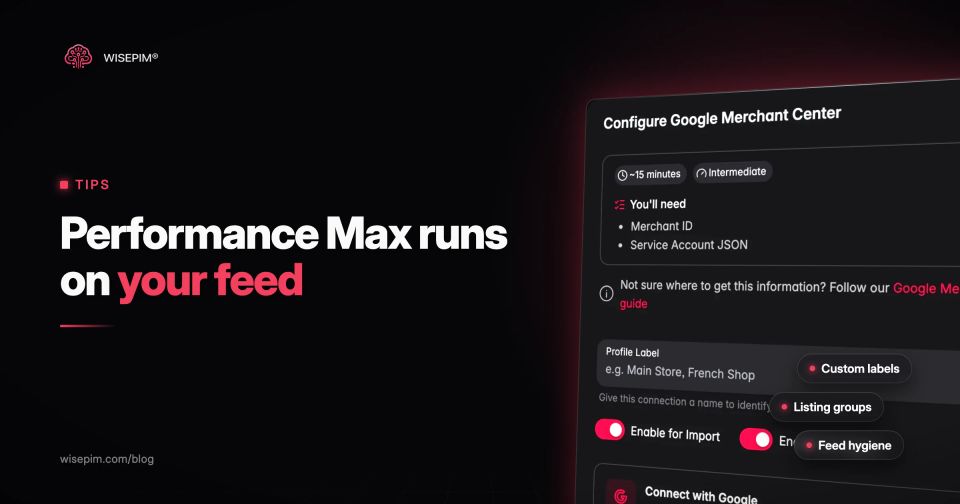
Performance Max is a goal-based Google Ads campaign type that reaches all Google Ads inventory (Search, YouTube, Display, Discover, Gmail and Maps) from one campaign, with bidding and placement handled by Google AI. For retailers, a Performance Max campaign pulls its products from a linked Google Merchant Center account, so the product feed decides which items can serve, what a Shopping ad says and how finely you can split the catalog.
Because Google automates bids and placements, the feed is one of the few levers you still control. This guide covers how a retail Performance Max campaign reads Merchant Center data, the seven listing group dimensions, feed-only versus full asset groups, the attributes that carry the most weight (title, image, GTIN, price, availability, product highlights), and a custom label plan for margin bands, bestsellers and seasons. Every limit below comes from the Google Ads Help and Merchant Center Help pages as they read today.
How a retail Performance Max campaign uses Merchant Center data
You link Google Ads to Merchant Center, then pick the Merchant Center account and, where relevant, the country or feed label when you create the campaign. Google notes that you cannot change the Merchant Center account once the campaign exists, so decide up front which account holds the products you want to advertise.
Inside the campaign, each asset group has listing groups: filters that define which products that asset group may show. Products enter Merchant Center through data sources. A primary data source is the only type that can add or remove products; a supplemental source only adds or updates attributes for products a primary source already holds (Merchant Center Help).
From product record to Performance Max ad
The seven listing group dimensions in Performance Max
Google's listing groups help page lists seven ways to subdivide the products in an asset group. Every one of them maps to a feed attribute, which is why a messy feed limits your campaign structure before you open Google Ads:
- Category: the Google product taxonomy (`google_product_category`). Subdividing by category only works in listed countries, including the US, UK, Germany, France, the Netherlands and Sweden.
- Brand: the `brand` attribute.
- Item ID: the `id` attribute, for single products.
- Condition: new, used or refurbished (`condition`).
- Product type: your own hierarchy (`product_type`), subdividable up to five levels deep.
- Channel: online or local, for retailers with store inventory.
- Custom label: `custom_label_0` to `custom_label_4`, values you define.
An asset group can hold up to 1,000 listing groups, and Google warns that going near that number is not a best practice. Splitting by item ID is the trap: it works for ten hero products and falls apart at five hundred. Brand, product type and custom labels scale because one value covers many products.
Feed-only asset groups versus asset groups with creative
An asset group can carry text, images, logos and videos next to its listing groups. Many advertisers run what they call feed-only asset groups instead: listing groups and a final URL, no uploaded creative. The trade-off is reach. Google's Performance Max retail documentation says that linking Merchant Center lets the system generate assets automatically but that reach and performance will be limited, and that adding text, image or video assets helps ads serve on more formats such as Discover, YouTube in-stream and Display.
One naming change to know: the setting that used to be called automatically created assets is now called text customization, and Google states that it cannot be applied to Shopping ads. Whatever you choose for creative, Shopping ads are built from your feed title, image and price, so the feed matters in both setups.
Feed attributes that decide how Performance Max shows a product
Merchant Center requires `id`, `title` (or `structured_title`), `description`, `link`, `image_link`, `availability` and `price` for every product (product data specification). Passing approval is the floor. These are the attributes worth extra attention once products are approved.
Titles: up to 150 characters, key words first
The title is the main text of a Shopping ad and a strong relevance signal. The limit is 150 characters, but only the start is visible in most placements, so lead with what a shopper types: brand, product type and the attribute that separates variants. "Ardenne cast iron casserole 24 cm, cherry red, 4.2 L" beats "Round Casserole No. 24". Our title optimization guide has patterns per category.
Images: 500 x 500 pixels for every product from 31 January 2027
Google has announced that all product images must be at least 500 x 500 pixels from 31 January 2027, and it recommends 1500 x 1500 or larger. The main image must show the product clearly, without promotional text, watermarks or price overlays. Fix undersized images now rather than in January, when disapprovals would land in the middle of your sale season. Our product photography guide covers the shoot setup and channel-ready image files.
GTIN, brand and MPN
Brand is required for new products except movies, books and music, and placeholder values such as "Generic" or "N/A" are not accepted. Google calls GTIN strongly recommended where one exists and adds that you should only provide one if you are sure it is correct. Wrong GTINs cause more trouble than missing ones.
Price and sale_price
Outside the US and Canada, `price` includes VAT. For a promotion, send `sale_price` and keep `price` at the regular, non-sale price, with `sale_price_effective_date` if the promotion has an end date. Planning a Black Friday sale? The Black Friday checklist puts this feed work on a four-week countdown. A feed price that differs from the landing page triggers a mismatched price error and can pause the product during exactly the weeks you advertise hardest.
Availability values and timing
Allowed values are `in_stock`, `out_of_stock`, `preorder` and `backorder`, and `availability_date` is required with `preorder`. Performance Max can keep sending clicks to an item that the feed says is in stock, so availability needs to update as often as your stock moves, not once a night if you sell fast.
Product highlights and product_type
`product_highlight` takes 2 to 100 short statements of up to 150 characters each; Google recommends four to six and says they help shoppers find product information on AI-driven surfaces such as AI Mode in Google Search. `product_type` takes up to 750 characters, and only the first value is used to organize bidding and reporting, so put your main category path first: "Kitchen > Cookware > Casseroles".
A custom label plan for margin bands, bestsellers and seasons
Custom labels are free-text values you attach to products for filtering, reporting and bidding in Performance Max, Shopping and Demand Gen. Shoppers never see them. Each of the five labels allows up to 100 characters per value and up to 1,000 unique values across the account (custom label spec). In practice you want far fewer: three to eight stable values per label, each with a written definition.
Example custom label plan for a cookware shop
| custom_label_0 | How much do we earn on it? | margin_high, margin_mid, margin_low | Margin (price minus cost, divided by price): 45% or more, 25 to 45%, under 25% |
|---|---|---|---|
| custom_label_1 | How well does it sell? | bestseller, core, long_tail | Top 10% of units sold in the last 90 days, next 40%, the rest |
| custom_label_2 | When does it sell? | winter, summer, all_year | Set by the category manager per category |
| custom_label_3 | What does it cost the shopper? | under_25, 25_75, over_75 | Selling price including VAT, in EUR |
| custom_label_4 | Is it in a campaign or lifecycle phase? | new, promo, clearance | Launch date under 60 days, active sale price, discontinued with stock left |
With that plan, an advertiser can give margin_high bestsellers their own asset group with a higher return target and move margin_low long-tail items to a group with a lower budget. The margin band is the label that pays off most often, because Performance Max otherwise optimizes for revenue and has no idea that one product in a basket earns twice as much as another at a similar price.
Working out the margin band for four products
Margin is calculated on the price without VAT: (net price minus cost) divided by net price. Here is the cookware plan applied to four products sold at 21% VAT (illustrative prices and cost prices):
- Cast iron casserole 24 cm: EUR 99.95 incl. VAT, EUR 82.60 net, cost EUR 44.00, margin 46.7%, so margin_high.
- Chef's knife set, 3 pieces: EUR 79.95 incl. VAT, EUR 66.07 net, cost EUR 46.50, margin 29.6%, so margin_mid.
- Non-stick frying pan 28 cm: EUR 39.95 incl. VAT, EUR 33.02 net, cost EUR 26.80, margin 18.8%, so margin_low.
- Silicone spatula: EUR 9.95 incl. VAT, EUR 8.22 net, cost EUR 2.90, margin 64.7%, so margin_high.
The spatula shows why one label is rarely enough. Its margin percentage is the best in the list, but it earns EUR 5.32 per sale against EUR 38.60 for the casserole. Combine the margin band with the price band label (under_25) so cheap accessories do not end up in the same asset group as the casseroles. And the frying pan shows why the cost price must be current: a supplier price rise of a few euros moves it from mid to low, and the label should follow without anyone remembering to change it.
A few rules keep labels useful. Use lowercase values with underscores, since labels are not case sensitive. Never reuse a label slot for a different question, or last quarter's reports become unreadable. Recompute values on a schedule (margin when cost prices change, sales tier monthly) instead of by hand. And do not spend a label on something the feed already carries, such as brand or condition.
Feed hygiene before you restructure a Performance Max campaign
New asset groups start without a performance history of their own, so clean the feed first and restructure once. This checklist covers the checks that most often break a listing group split.
Performance Max feed checks
Getting labels and clean attributes into Merchant Center with WISEPIM
WISEPIM does not manage campaigns, bids or budgets; that stays in Google Ads. It manages the product data both Merchant Center routes read. The Google Merchant Center connection pushes products through Google's Merchant API: title, description, link, up to eleven images, price and sale price, availability, condition, GTIN (only when the check digit is valid), brand, MPN, item group ID, shipping weight, `product_type` built from the product's category path and `google_product_category` from your confirmed Category map. It does not send custom labels or product highlights.
Custom labels go through Feed Hub. A Google Shopping feed in Feed Hub lists `custom_label_0` to `custom_label_4` as optional fields, and each can be mapped to a product attribute, a fixed value or a template string. Keep the margin band, sales tier or season in an attribute (for example `margin_band`, filled in bulk), map it to a label, and Merchant Center fetches the feed URL on the schedule you set. If the Merchant Center connection is your primary source, the Feed Hub feed can act as a supplemental data source that adds the labels (supplemental sources need the Advanced data source management add-on). Google matches supplemental data to products by ID, which must match the primary source exactly (Merchant Center Help), and the connection sends the SKU as the product ID, so map `id` to the SKU in the feed.
Two more pieces cover the attribute work above. Quality Guard rules can stop a product without a valid GTIN or a main image from being exported at all, and pricing rules per channel set the Google price (markup, rounding, a minimum margin) at export time, so the feed and the price you intend for that channel stay aligned without editing the stored price. For channel-wide feed requirements, the Google Shopping feed guide lists every field.