Product photography is the work of photographing items so shoppers can judge them online: a clean main image on a plain background, extra angles, close-ups of materials and details, and a shot that shows scale or use. For a webshop the job does not end at the camera. Every photo also needs the right size and background for each sales channel, a file name that ties it to the right SKU, and alt text.
The short version: put the camera on a tripod, use one large soft light source plus a reflector, shoot every product against the same white sweep with the same settings, follow a fixed shot list per category, and export from master files to each channel's specs. Images carry a lot of weight: in Baymard Institute testing, 56% of users started their visit to a product page by exploring the images. Below is the setup, the lighting, a shot list per category and the file rules that keep listings live.
Product photography equipment for a small in-house studio
You do not need a full studio to shoot a catalog. You need repeatability: the same light, camera position and background for every product, so a grid of 200 mugs looks like one set and not 200 separate shoots.
- Camera: an interchangeable-lens camera with a 50 mm or macro lens is the most flexible. A recent phone works for small items if you lock exposure and focus and shoot in its highest-quality format.
- Tripod: the single most important purchase. It removes camera shake, lets you use low ISO and keeps framing identical from product to product.
- Background: a roll of white backdrop paper or a white acrylic sweep that curves from the table up the wall, so there is no visible horizon line.
- Light: one large softbox or LED panel with a diffuser, or a north-facing window for daylight. Add a second light later for the background.
- Reflectors and flags: white foam boards bounce light into shadows; black boards add contrast to the edges of glass and metal.
- Small kit: a grey or color reference card, putty and clamps to hold products upright, a lint roller, gloves for glossy items, and tape to mark positions on the table.
- Tethering: shooting straight to a laptop lets you check sharpness and color at full size before the product goes back on the shelf.
Lighting product photos: window light, softboxes and reflectors
Soft light is the default for product photography because it wraps around the item and keeps shadows gentle. The bigger the light source relative to the product, and the closer it is, the softer the light. A 60 x 90 cm softbox half a meter from a mug gives soft, even light; the same softbox three meters away behaves like a hard light.
- Key light: place the main light at roughly 45 degrees to the side and slightly above the product.
- Fill: put a white board on the opposite side to lift the shadows. Move it closer for less contrast, further away for more.
- Background light: for a pure white backdrop, light the sweep separately and slightly brighter than the product, so the background goes white without washing out the product's edges.
- Window light: works well for small batches. Diffuse direct sun with a white curtain or tracing paper, and shoot at the same time of day so color and brightness stay consistent across sessions.
- Never mix light sources: daylight plus a warm ceiling lamp gives two color temperatures in one image, which no white balance setting can fully fix. Switch off room lights.
Reflective products need their own approach. For glass, polished steel or glossy packaging, light from behind or the side through a large diffuser and use black boards to draw clean dark lines along the edges. For transparent bottles, a backlit white panel shows the shape and the liquid level.
Camera settings that keep a whole catalog consistent
Set everything manually once and leave it. Automatic modes change exposure and color between products, which is exactly what makes a category page look patchy.
- Mode: manual exposure, so a dark product and a white product get the same treatment.
- ISO: the camera's base ISO (often 100) for the cleanest files; the tripod handles the longer shutter speed.
- Aperture: around f/8 to f/11 keeps most products sharp from front to back. For small items close up, use focus stacking instead of closing the aperture further.
- White balance: set a custom white balance from a grey card under your light, rather than auto.
- File format: shoot RAW (or the phone's RAW or highest-quality mode) so you can correct color without damaging the image.
- Position: fix the camera height, distance and focal length, and tape product positions on the table so every item lands in the same spot.
Before the first product goes on set
Product shot types a listing needs, from packshot to scale
Most listings combine the same building blocks. The mix changes per category, but the main image does the heavy lifting because it is the one shown in search results, category grids and shopping ads.
- Main image (packshot): the whole product, front or three-quarter view, on a plain white background, filling most of the frame.
- Alternate angles: back, side, top, underside, and open or closed states (a bag with the flap open, a laptop stand folded flat).
- Detail shots: stitching, fabric texture, connectors and ports, a label with ingredients or care instructions.
- Scale shot: the product in a hand, on a person or next to a known object, so a 350 ml mug does not look like a vase.
- In-context or lifestyle image: the product in use, in a real setting. It sells the idea; it does not replace the packshot.
- What is in the box: every included accessory laid out, which also cuts questions and returns about missing parts.
- Variant images: one image per color or finish. Google asks for a unique image per variant that shows only that variant.
A product photography shot list per category
A shot list turns photography from a creative session into a repeatable process. Agree it per category before the shoot, so a new photographer, freelancer or supplier delivers the same views in the same order.
Shot list per product category
| Apparel | Front on model or flat lay | Back, side, worn close-up | Fabric, label, closures | Model with height and size worn | Amazon wants adult clothing on a standing model, no mannequin |
|---|---|---|---|---|---|
| Footwear | Single shoe, side profile | Pair from above, sole, heel | Material, stitching, insole | On foot | Amazon's main image is one shoe facing left at 45 degrees |
| Furniture | Full piece, three-quarter view | Front, side, back | Upholstery, joints, legs | Styled room with a person or known object | Size is the top doubt: add a dimensions image |
| Small electronics | Front, device switched off | Back, sides, ports | Buttons, connectors, screen | In hand or on a desk | Show every cable that ships in the box |
| Jewelry | Piece on white, close | Side, clasp, back | Stones, engraving, hallmark | Worn on ear, neck or hand | Reflections: use black flags and diffusion |
| Beauty and personal care | Pack front, cap on | Back label, side | Texture swatch, applicator | In hand for size | Ingredients label must be readable |
| Food and supplements | Pack front | Back with nutrition panel | Contents poured or served | Portion next to pack | Packaging changes: reshoot when the design does |
| Tools and DIY | Tool on white, full length | Both sides, attachments | Grip, battery, settings dial | In use on material | Show accessories only if they are included |
Take the stoneware mug as a worked example: SKU MUG-350-SAG, 350 ml, matte sage glaze. Its list is five images: front on white, handle side, top view into the mug, glaze close-up, and the mug in a hand. Every color variant (sage, sand, charcoal) gets its own front and handle shot, so each variant has a matching main image in the shop and in the feed.
Image requirements for Shopify, Google Merchant Center and Amazon
Shoot large, then export per channel. These are the limits and composition rules that most often decide whether an image is accepted. For format choice (PNG, JPEG or WebP), see our comparison of WebP vs PNG for product images.
Image size and composition rules per channel
| Shopify | Not specified | 2048 x 2048 px for square images | 5000 x 5000 px or 25 MP, under 20 MB | Not specified; keep one aspect ratio | Not specified |
|---|---|---|---|---|---|
| Google Merchant Center | 500 x 500 px (all products from 31 Jan 2027) | About 1500 x 1500 px or more | 64 MP, 16 MB | No overlays, borders or added logos | 75% to 90% of the image |
| Amazon | 500 px on the longest side | 1,000 px or more (enables zoom) | 10,000 px on the longest side | Pure white, RGB 255, 255, 255 | 85% of the image |
- Shopify: the Shopify Help Center says images can be up to 5000 x 5000 px or 25 megapixels and under 20 MB, that 2048 x 2048 px usually displays best for square images, and that PNG followed by JPEG is the best file type for most product images. Use one aspect ratio across a collection so the grid lines up.
- Google Merchant Center: the image_link specification sets a minimum of 500 x 500 pixels for all products from 31 January 2027 and recommends around 1500 x 1500 or more. The main image must show the exact item, with no placeholders such as "Coming soon", and one variant per image.
- Amazon: if you sell there, the product image requirements call for a pure white main image background, the product at 85% of the frame, the entire product visible, and no props that are not included. Amazon also asks you not to enlarge small images artificially.
Editing product photos without misrepresenting the item
Retouching should make the photo match the product in your hand, not improve on it. Remove dust, straighten the product, clean up the background to pure white and correct color against the reference card. Do not change the product's color, shape or texture: a sage mug that looks mint online comes back as a return.
Two rules from the channel docs catch teams out. Google requires images created with generative AI to keep metadata that marks them as AI-generated, such as the IPTC DigitalSourceType tag, so do not strip metadata from those files on export. And upscaling a small supplier image to hit a minimum size produces soft, blocky detail; reshoot or request the original instead. If a file is too small for Google, our guide to the image too small error lists the fixes.
File naming that ties every photo to the right SKU
File names are how photos find their product, in your PIM, your shop and your supplier's folders. Agree a pattern before the shoot and make the product identifier the first part of the name. Google's image SEO guidance also prefers short, descriptive names over camera defaults such as IMG00023.JPG.
- Pattern: identifier, separator, view, sequence. For example MUG-350-SAG_front_01.jpg, MUG-350-SAG_handle_02.jpg, MUG-350-SAG_detail_03.jpg.
- Separator: if your SKUs contain hyphens, separate the parts of the name with underscores, so software can split the identifier from the view without guessing.
- Lowercase extensions, no spaces: spaces become %20 in URLs and break some imports.
- Extension must match the format: Google flags a PNG saved with a .jpg extension as an unsupported image type.
- Amazon uploads: Amazon's optional naming scheme is identifier, variant code and extension separated by periods, such as B000123456.MAIN.jpg, so keep a renamed export copy for that channel.
In WISEPIM, the media library can link uploads to products by that identifier. Turn on auto-linking, pick the field the name starts with (SKU by default, or EAN, UPC, MPN, product name or a custom text attribute) and the separator, and an upload named MUG-350-SAG_front_01.jpg is linked to the product with SKU MUG-350-SAG.
Alt text for product images, written per image
Alt text describes the image for screen reader users and gives search engines context. Google calls it the most important attribute for image metadata and warns against stuffing it with keywords. Describe what is visible in this specific image, not the whole product page.
- Weak: "mug" or "MUG-350-SAG".
- Stuffed: "mug coffee mug stoneware mug best mug gift mug".
- Good, main image: "Matte sage green stoneware mug, 350 ml, on a white background".
- Good, detail image: "Close-up of the speckled matte sage glaze near the mug's rim".
- Good, scale image: "Hand holding a sage stoneware mug to show its size".
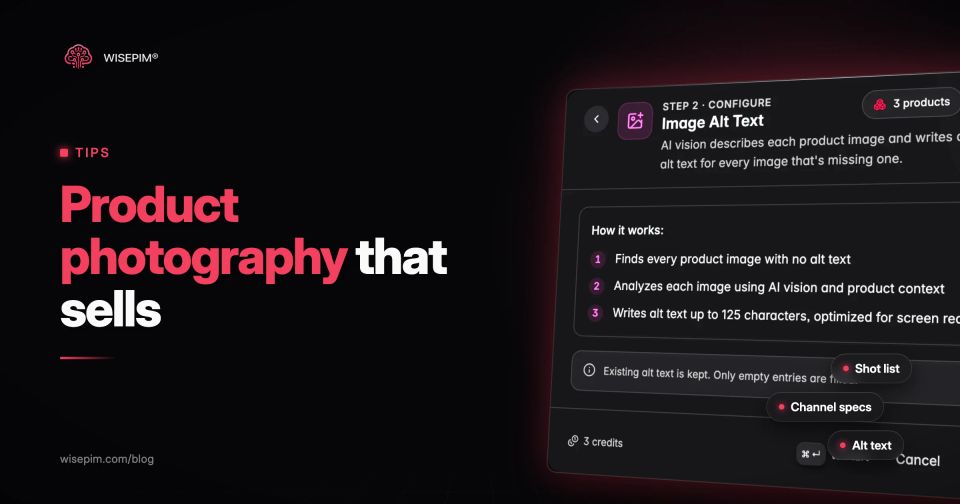
Keep alt text short and specific, and translate it along with the rest of the product content when you sell in several languages. For one-off images, the free image alt text generator builds options from a product name, color, material and context. For a catalog, WISEPIM's Image Alt Text enrichment looks at each product image together with the product data and writes alt text of up to 125 characters, filling only images that have none.
Resizing and exporting product images in bulk
Keep one master file per view, the largest clean version, and derive every channel size from it. Never resize a resized copy. The gap to close is often bigger than teams expect: in WISEPIM's import snapshot of about 50 catalogs, the median product had one image and 36% of products had no image at all. Shooting the missing views comes first; batch processing makes the rest manageable.
- Export masters at full resolution in a lossless or high-quality format.
- Make one export recipe per channel: target long edge, format, quality and background.
- Square the main images with an even margin so the product fills the share each channel asks for.
- Check a sample of ten images at 100% zoom before you run the whole catalog.
- Upload or sync, then check the channel's diagnostics for rejected images.
WISEPIM handles these steps on images already in your catalog. In the media library, Bulk Image Actions applies one change to a selection: Remove Background saves a transparent PNG as a new version of the image, Resize & Convert sets dimensions and output format, and Optimize for Platform applies a preset per shop platform. Check a preset against the channel's current guidance before running it on a whole catalog, since channels update their specs. Image studio, a job in Catalog Jobs, works on the photos you already have: it can put products on a white background, square the frame with a margin, make files lighter by fitting them to a long edge of 1,200, 1,500 or 2,000 pixels, and write missing alt text in the languages you choose. Its edits are staged as new versions for review instead of overwriting live photos, unless they clear the auto-accept threshold you set for the run; it never upscales and makes no generative edits. The digital asset management page shows how the media library connects images to products, and the image quality guide covers the checks to run before a feed goes out.